


  • flinders.edu.au
  • Staff
  • Students
  • Library
Flinders University Logo Flinders University Logo
  • Employee resources

    Benefits and pay

    • Benefits and pay overview
    • Getting paid
    • Leave
    • Superannuation
    • Employee health plan
    • Employee assistance program
    • Staff discounts and offers
    • P&C forms, documents and guides
    • Thriving@Flinders

    Working at Flinders

    • Working at Flinders overview
    • Information for new staff
    • Job vacancies
    • Enterprise agreement
    • Equal opportunity and diversity
    • Racial discrimination
    • Performance reviews
    • Academic Workload Model
    • Lodge a complaint or grievance

    Professional Development

    • Professional development overview
    • Academic promotion
    • Academic Career Framework
    • Academic Career Framework Hub

    Manager & supervisor resources

    • Manager & Supervisor resources overview
    • Supervisor reference manual
    • Induction checklist
    • Inducting new staff
    Workday
    iEnrol login
    Staff learning portal
  • Workplace support

    Doing your job

    • Digital services
    • Travel
    • Work health and safety
    • Finance and Procurement Services
    • Handling student complaints
    • Policy library
    • Risk management
    • Foreign Interactions
    • Managing breaches of Student Code of Conduct

    Everyday needs

    • Searchable list of everyday topics
    • Room bookings
    • Flinders Print (staff printing)
    • Flinders Press (Printing and copying services)
    • Corporate Word and Powerpoint templates
    • Guide to updating your staff profile

    Your campus

    • Parking on campus (Bedford Park)
    • Parking and transport (Tonsley)
    • Virtual Business Blue and Guest parking permits
    • Campuses and floor plans

    Contractors

    • Contractors at Flinders
    • Information for contractors and subcontractors
    • Contractor safety
    • Permits and permission to proceed
    • Engaging a contractor
    Service One
    Okta
    vPermit
    FlinSafe
  • Teaching and research resources

    Teaching resources

    • Learning and teaching
    • Timetables
    • Academic integrity

    Research resources

    • Research support
    • Research contracts
    • Research integrity, ethics and compliance
    • Researcher training, development and communications
    • Research analytics and reporting
    • Research partnerships and commercialisation

    Funding opportunities

    • Funding opportunities overview
    • Philanthropic funding
    • Research grants and tenders
    • Teaching and learning awards
    Student Two Web
    Research Now login
  • Colleges and services

    Colleges

    • College of Business, Creative Arts, Law and Social Sciences
    • College of Human Sciences and Culture
    • College of Medicine and Public Health
    • College of Nursing and Health Sciences
    • College of Science and Engineering

    Professional Services

    • Academic Quality and Enhancement
    • Engagement
    • Finance and Procurement Services
    • Flinders International Services
    • Governance, Legal and Risk
    • Information and Digital Services
    • Learning and Teaching Services
    • Marketing and Student Recruitment
    • Office of Graduate Research
    • Office of Indigenous Strategy and Engagement
    • People and Culture
    • Property, Facilities and Development
    • Research Development and Support
    • Student Administration Services
    • Student Experience
    Service One
    Staff directory
  • flinders.edu.au
  • Staff
  • Students
  • Library
  • You have no saved courses.

    Continue to explore your course options.

     
    Explore our courses

    Your saved courses

    {{{courseName}}}
    mail_outline
    delete
    View all saved courses
  • Quick links 
    • Staff directory
    • Workday
    • Service One
    • Flinders dashboard (Okta)
    • Calendar
    • Semester dates
    • Bedford Park campus map
    • Parking
    • Policy library
    • Shop Flinders merchandise

 

RSpace | Electronic Lab Notebook for Research

Research support RSpace

What is RSpace?

RSpace is Flinders’ Electronic Lab Notebook (ELN) solution, providing a flexible, searchable and secure digital alternative to traditional paper lab notebooks and spreadsheets. It streamlines record‑keeping by offering an easy to use platform for documenting research activities.

RSpace is designed for researchers across all disciplines and career stages. It supports laboratory based work that requires clear, structured documentation of experiments and protocols and it is equally valuable for solo researchers and HDR students who need organised, traceable records of their work. Research groups and Principal Investigators can also benefit from its collaborative features, group structures and oversight tools that make managing shared projects easier and more transparent.

With RSpace you can create, manage and access your research records from any device, including PCs, Macs, tablets and smartphones and collaborate with colleagues from any location with network access.

This feature-rich platform will support Flinders in building and maintaining a smart, connected system for managing research data across the university.

Note: RSpace is not a primary storage platform. Core datasets must be stored on R-Drive in accordance with the Flinders University Data Management Policy.

Effective data management ensures accuracy, integrity and transparency, supports FAIR and CARE principles, and enables appropriate validation, sharing and retention. Flinders Library can assist with Data Management Plans and open access publishing. See the Research Data webpage for full guidance. 

REDCap
     RSpace Training Resources for Researchers  RSpace Training Resources for Principal Investigators

User Roles in Rspace

Role Capabilities
Principal Investigator (PI)

Once a PI has been assigned to a lab in RSpace by a System Administrator they can:


• Invite and remove group members
• Update member roles
• Organise and manage shared group content
• View content created by group members
• Edit members’ content (when permissions enabled)
• Create collaboration groups with other PIs
• View and search audit trails
• Export and archive group work
• Enable auto‑sharing and publication settings
• Delegate tasks to Lab Admins/Senior Lab Admins
• Disable a Lab or Project Group
• Create a Project Group (if enabled)

• Create a Lab Group (if enabled)
• Create and edit documents
• Share documents with their Lab Group

Note: Only one PI can be assigned to a Lab Group/Project Group. Senior Lab Admins can also be assigned, who have almost all the same capabilities as the PI, but without the ability to change the roles of other users.

Senior Lab Administrator

Once a Senior Lab Administrator has been assigned by a Principal Investigator they can:


• Add and remove group members and edit the group page
• View all members’ work except the PI (when enabled)
• Organise shared content
• Create a Project Group (if enabled)
• Create and edit documents
• Share documents with their Lab Group

Basic User • Create and edit documents
• Share documents with their Lab Group
• Create a Project Group (if enabled)

User Group Types in RSpace

There are three types of User Groups available to Flinders Researchers in RSpace, including:

LabGroups are the most common group type in university settings and can be created for any subset of users by System Administrators. Each LabGroup must have one primary Principal Investigator (PI), who is responsible for overseeing the group’s work and determining its organisational structure. All users can create folders within the group, but only the PI and Senior Lab Administrator can delete or reorganise subfolders. Within a LabGroup, the PI automatically has visibility of all members’ work, except for work belonging to users who hold PI status in other LabGroups.

Project Groups enable flexible, ad‑hoc collaboration between two or more users and do not require a Principal Investigator (PI). Only the work that members choose to share with the group is visible to everyone. All members have equal ability to create, delete and reorganise subfolders within the group.

Project Groups support focused, selective collaboration between users without exposing any unshared work to other members. These groups do not require a PI and even users who hold a global PI role participate as regular members. No one can view another member’s content unless it is explicitly shared with the group. Project Groups can be created by users. The user who creates the group becomes the Group Owner, with the ability to invite or remove members and transfer ownership to another user.

Intructions on how to create a Project Group

Solo Users: A solo Researcher can log in and create their own notebook, but it cannot be shared or used for collaboration. Only the researcher who created the content has permission to view and edit it.

Getting Started in RSpace

1

Set up a new Lab in RSpace

The Principal Investigator must submit a ServiceOne request. You can search for “RSpace” in ServiceOne to find the relevant form. Fill out the required details and submit the form. Once submitted, the Research Success team will create the new lab in RSpace and grant the Principal Investigator access.

NOTE: Users will need to log in to RSpace first, before being added to a lab or group. 


2

Login to RSpace for the first time

  1. Locate the RSpace tile on your OKTA dashboard. If the RSpace tile isn’t visible, you may need to add the application to your dashboard. To do this, follow the steps below.

 i. Log into your Flinders Okta dashboard

ii. Click the Add Apps button on the LHS, typically located on the left hand sidepanel

iii. Search for the application in the App Catalog

 iv. Once located, Click Add next to the application

2.      Click on the RSpace tile

3.      A login window will appear. Your FAN Email address should be automatically populated. Enter your First Name, Last Name and Email Address.

4.      Click Sign Up.


3

Add New Members to a Lab Group

Once the lab has been set up by the Research Success Team and the Principal Investigator assigned to the lab, the Principal Investigator can then add lab members and assign the appropriate user roles. Instructions for this can be found here: 

Add New Members to a Lab Group

RSpace Assistance

Once logged in, you can contact the RSpace Support Team directly within the application:

  1. Select Open Help on the right-hand side of the screen
  2. Click Chat with us
  3. Select Send us a message

Note: RSpace support operates in a different time zone (approximately 15 hours behind Adelaide), so responses may take a little longer.

You can also contact the Flinders Research Support Team at researchsupport@flinders.edu.au

For technical issues or system access requests, please lodge a ServiceOne request to ensure it reaches the correct team:

  1. Select University Systems
  2. Choose RSpace or FieldMark from the drop-down
  3. Include “RSpace” or “FieldMark” in the short description

Training Resources

RSpace Training Resources for Researchers

Access practical guides and tutorials to help you use RSpace’s core features with confidence.

Explore step-by-step guides for Basic Users:

Access the RSpace Training Library (Researchers)

View short tutorials covering key tasks and workflows:

Watch RSpace video tutorials (Researchers)

What you’ll learn:

  • Creating documents: basic and structured documents, notebooks, forms
  • Entering content: text editor, syntax highlighting, sketching, calculations, sharing
  • Collaboration: sharing, groups, finding users
  • Communication: to-do lists, messaging, chat
  • Importing and exporting: Word, Evernote, formats, archiving
  • Reusing content: templates, snippets
  • Organisation and search: workspace, document management, advanced search
  • Using files: gallery, attachments, file store, integrations
  • Working with images: viewing, annotating, inserting
  • Configuration: profile, authentication, security

RSpace Training Resources for Principal Investigators

Access targeted resources to support lab management, collaboration and data governance.

Explore step-by-step guides for Principal Investigators:

Access RSpace Training Library (Principal Investigators)

View short tutorials covering key tasks and workflows:

Watch RSpace video tutorials (Principal Investigators)

What you’ll learn:

  • Lab management: inviting users, organising work, audit trails, exporting
  • Lab groups: creating groups, managing access, sharing documents
  • Data management: signing, witnessing and long-term data practices

FAQ's

Find below our list of resources and guided modules:

Where do I find more information about Flinders data management policies? keyboard_arrow_up

We encourage you to visit the Research Data webpage for key information on Flinders’ expectations regarding research data management:

Visit the Research Data webpage

Why should I use these new tools, when I am already using something else for the same purpose? keyboard_arrow_up

We recognise that researchers currently use a wide range of tools for notetaking and data capture. However, adopting a unified, enterprise-wide solution brings significant benefits, including consistency across the research community, improved data integrity and streamlined access to information. Centralising research data in a secure electronic repository also strengthens collaboration and supports data sharing, while ensuring robust protection of research progress data - a top priority at Flinders.

Do I have to use RSpace or FieldMark? keyboard_arrow_up

You are not required to use RSpace or FieldMark in your research; however, as they are Flinders’ institution‑wide platforms for managing research notes, we encourage you to adopt them to enhance your research practice and support stronger research data management across the University.

Can I move information across from an existing ELN solution into to Rspace? keyboard_arrow_up

At the moment, there’s still quite a bit of variation in how different ELNs structure and format their data. A group called the ELN Consortium is working on a universal data format known as RO‑Crate or the .ELN format (see: https://the.elnconsortium.org/specification/). RSpace is actively involved in this project and is one of only a few ELN systems pushing for better interoperability between platforms.

RSpace already supports exporting data in the .ELN format and very soon (estimated mid‑April 2026) it will also support direct import of .ELN data bundles from another open‑source ELN, E‑Lab FTW. As the .ELN standard matures, RSpace’s ability to import data from other systems will likely expand — but only if those systems also support exporting in the .ELN format.

For other ELNs that don’t support .ELN export, there are several alternative options:

1) Export as PDF

The simplest approach is to export your legacy ELN content as PDF files and upload them to the RSpace Gallery. PDFs are human‑readable and RSpace will index their contents for searching. Raw data files would need to be exported separately and added to the Gallery as well. Even if your ELN doesn’t have an export function, you can usually “Print to PDF” from your operating system and upload those files manually.

2) Use APIs (if available)

If your legacy ELN has strong APIs, it may be possible to transfer data programmatically from one system to the other. This requires good technical skills and some trial and error to get the structure in RSpace to resemble your original organisation.

3) Export as HTML or raw text/data

If supported, you can export your ELN pages as HTML or raw text/data files. These can be dragged into the RSpace Gallery and organised into subfolders or stored externally on an SMB server. You can then link to them from within RSpace using the File Store integration tool: https://researchspace.helpdocs.io/l/en/article/22ntii8vzc-file-store-integration-for-enterprise

4) XML export/import

RSpace supports migration between RSpace servers using an XML export/import process: https://researchspace.helpdocs.io/l/en/article/eavzykv02m-migrating-data-from-community-or-test-server If your previous ELN can export XML and you’re technically inclined (and patient!), you could theoretically adjust the XML schema from your old ELN to match the structure required by RSpace.

5) Import Word or RTF files

If your old ELN can export or convert pages into Word (DOC/DOCX) or RTF format, you can import those files directly into RSpace using Create > From Word.
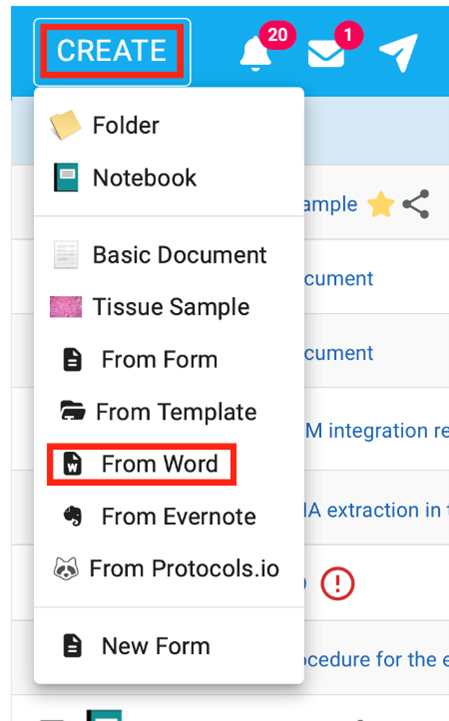
Image depicting how to import word or RTF files using Create > From Word
Can I invite people outside Flinders to access my RSpace or FieldMark notebooks? keyboard_arrow_up

Not at this stage. FieldMark currently doesn’t support invitations to external users. For security reasons, access is only available through Flinders SSO via OKTA, so anyone without a Flinders login can’t be added.

Allowing external collaborators in the future would require a new formal process and governance framework to be put in place.

If external access would be useful for your work, we’d love to hear about it. Understanding who you’d want to collaborate with helps us assess whether this should be explored further. Please send any feedback to researchsupport@flinders.edu.au.

Need further information or help?

For technical assistance, please lodge a ServiceOne request via the pathway shown below:
Home → IT Services → Report an issue → Access & System → University systems or software

On the form, tick
 University System, then select Other from the drop‑down menu. Please include “FieldMark” in the Short Description so your request is directed to the correct team.

ServiceOne Request

Flinders University Logo

Sturt Rd, Bedford Park
South Australia 5042

  • Glossary of terms and abbreviations
  • Current students
  • Staff directory
  • Flinders website

Follow Flinders

Facebook - Flinders University
Instagram - Flinders University
TikTok - Flinders University
LinkedIn - Flinders University
Bluesky - Flinders University
YouTube - Flinders University

Feedback and requests

Disclaimer

Accessibility

Privacy

CRICOS Provider: 00114A      TEQSA Provider ID: PRV12097      TEQSA category: Australian University

Last Updated: 07 Apr 2026

This website uses cookies

Flinders University uses cookies to ensure website functionality, personalisation and a variety of purposes as set out in its website privacy statement. This statement explains cookies and their use by Flinders.

If you consent to the use of our cookies then please click the button below:

Accept all cookies and continue

If you do not consent to the use of all our cookies then please click the button below. Clicking this button will result in all cookies being rejected except for those that are required for essential functionality on our website.

Reject all non-essential cookies and continue